The below article will help you learn that how the site’s Contact module work and how one can use it with enjoying every possible feature. There will be screenshots provided where ever required and that will help you grasp this more efficiently.
What Is Contacts ?
A contact is intact a source through which one can reach out others, this requires unique identity and here with Better mail it is the Email-id. You can create a contact using the basic details of person you want to add as your contact, you can also add single person and can also add multiple contacts as a list by importing it. This is quite easy to just add too many contact in one go.
There are several features available in the contacts tab below given are the list of the following.
- People : A simple way to add the contacts in the people window, having the feature to setup the customized format of necessary details accordingly.
- Lists: A set of the logical grouping where you have access to rights and permissions of the same.
- Filters: Enables you to apply customized filters and can be more than 1 at a time.
- Forms: These are the subscription forms through which they can fill out the details and opt for the subscription to your newsletters.
What is a Database?
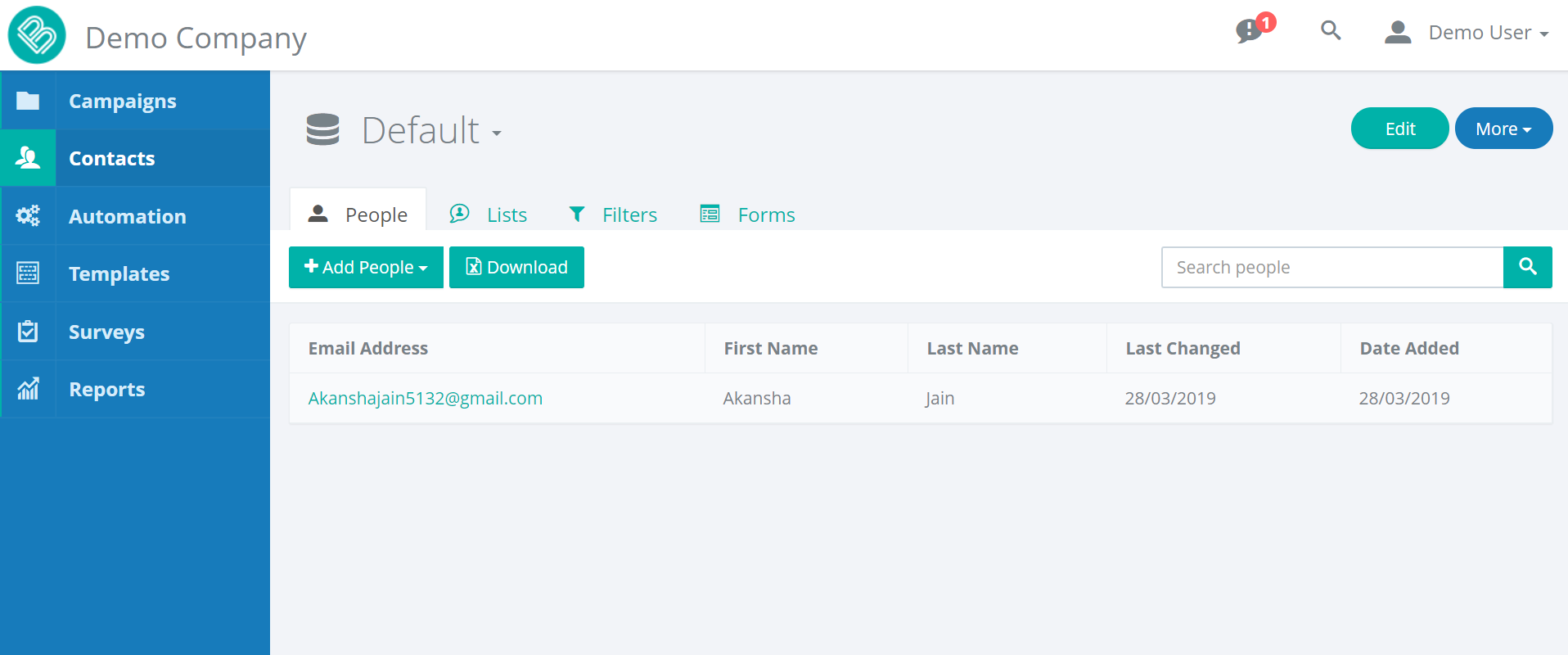
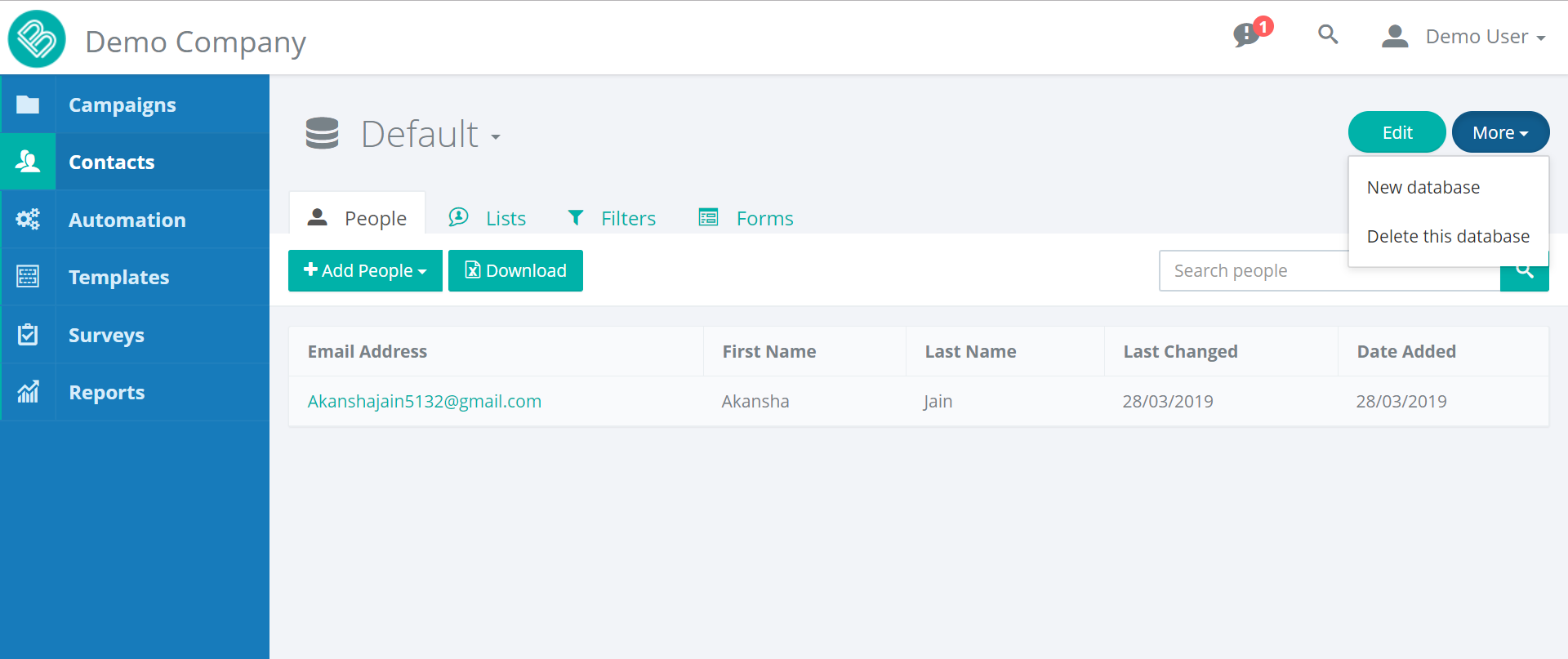
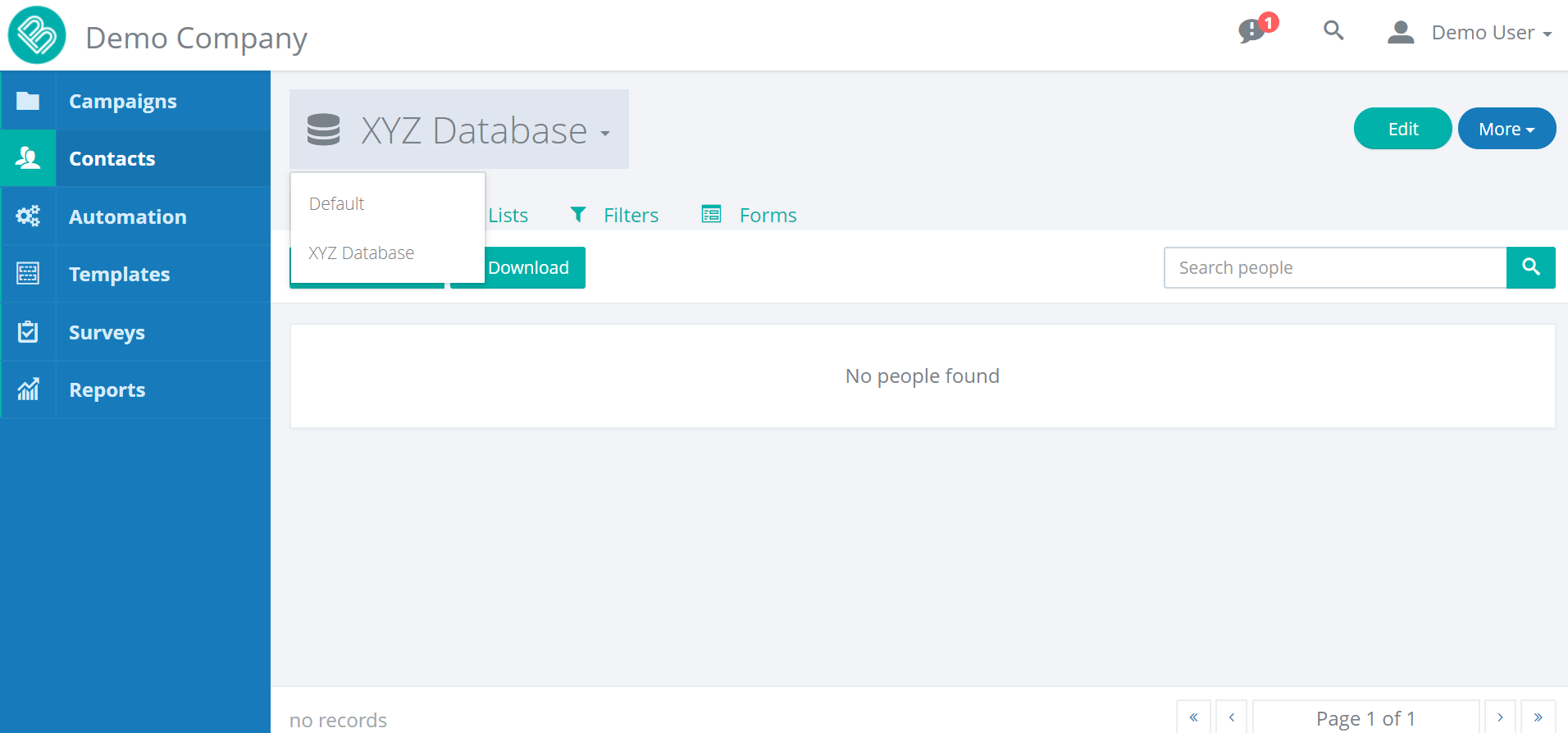
There would be a default Database account for all the users available while joining, you are allowed to Add the database according to your wish by clicking on “New Database” and would be available at edit button by simply clicking on “Edit” option available in top right corner of the screen. You also have right to delete the existing database if you want to.
What is a List and a Group?
A list is a logical grouping of the subscribers where we can have the access to certain permissions and rights based on the same. This could be further clubbed into groups, a list can have many groups and further these groups have the permission for subscribed and unsubscribe options. While using List it is not necessary you always want to have a existing group, so in that case you can just opt to have a new group as your selection.Better mail provides you all ways to have a perfect combination as per your needs and requirements.
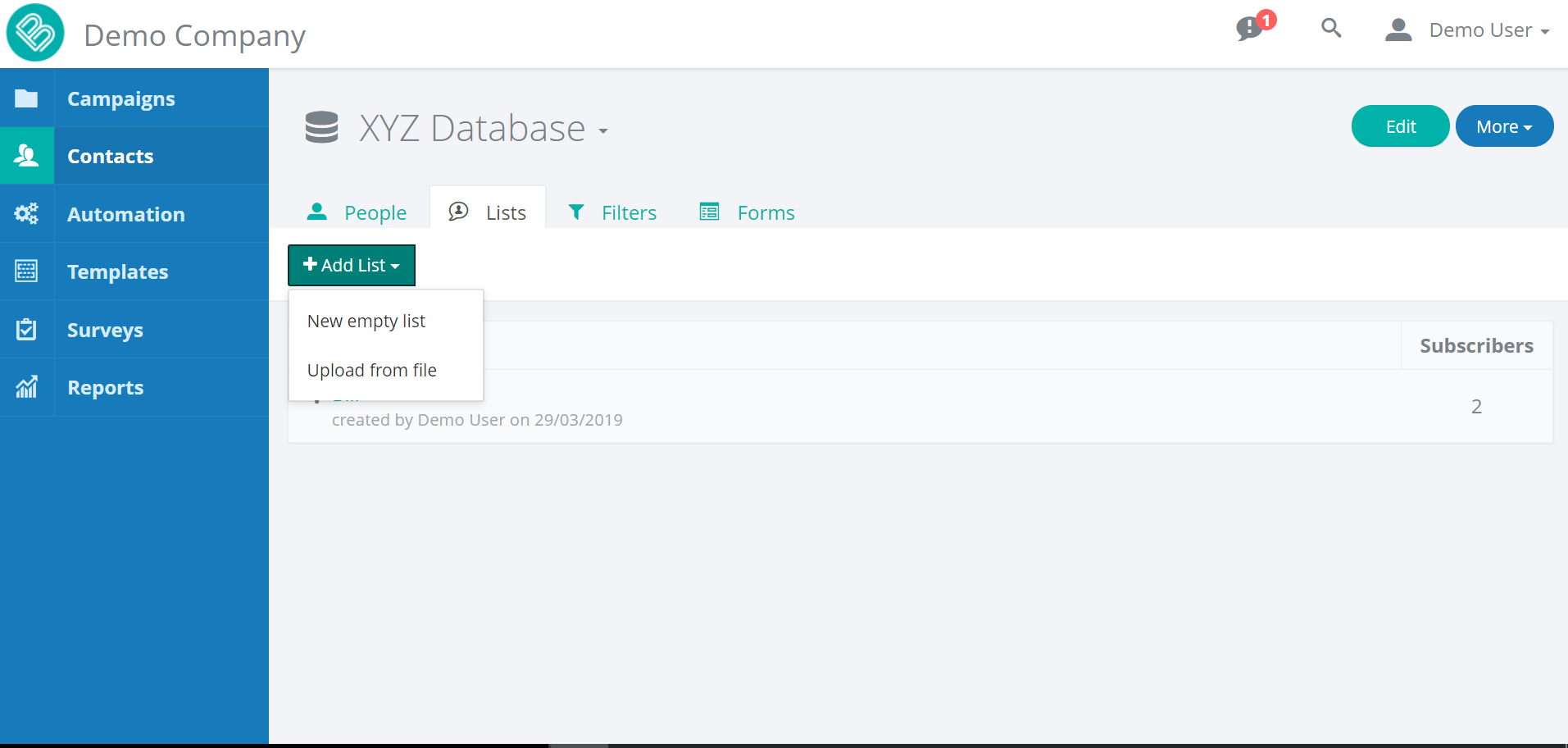
You can Add a list by clicking on the “ADD List” option, where you can add an empty list or also use the upload option as a choice.
These are the given below options for the Add List feature:
- New Empty List: You can add the new list using this option which could be the freshly created one.
- Upload From File: This helps you to upload the CSV file and add a list in bulk format.
You can use the link in the description for further understanding of working of the List in the Better Mail Website
” https://bettermail.zendesk.com/hc/en-us/articles/205856428-Best-practice-for-managing-lists-PLEASE-READ “.
What Does New Database option does?
This option is the saver for all the users like us who are willing to modify the changes according to our wish and have let us customize our own database, Isn’t it great?
Like, I do find it interesting and best part of the website is it just give customized name to the database, add desired fields in the database on your own and you can choose the field type also with that. You can add as many fields as you want to and can save by clicking the ‘Save‘ button.
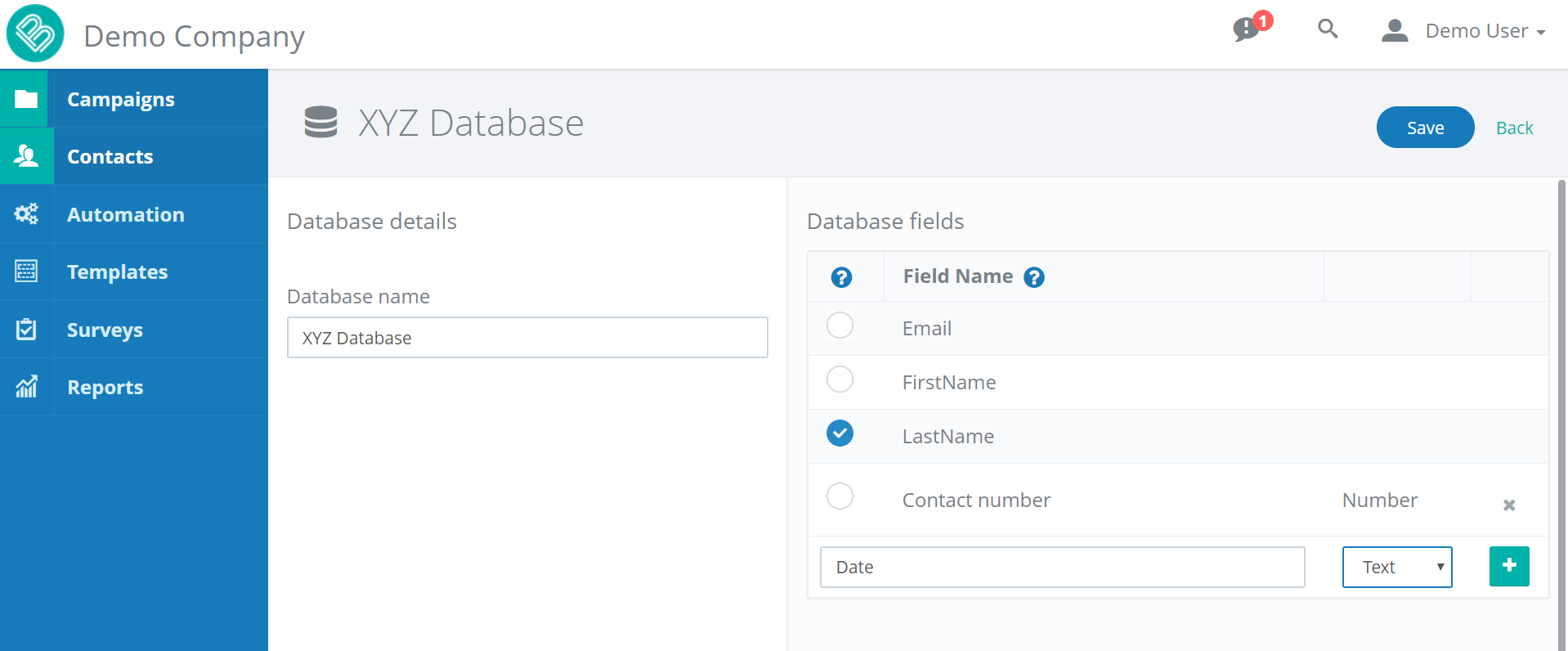
You can anytime switch to the database you want to i.e. the one you created or the one available as Default.
How to Add a Person in your Contact?
This helps you to add the people you want in your contacts, you can add the multiple people at a time using upload format or you can just add a single person as per your need, clicking on the ‘Single Person‘ tab will let you add the person with all the input attributes you edited while creating the customized database.

Upload File to add multiple People
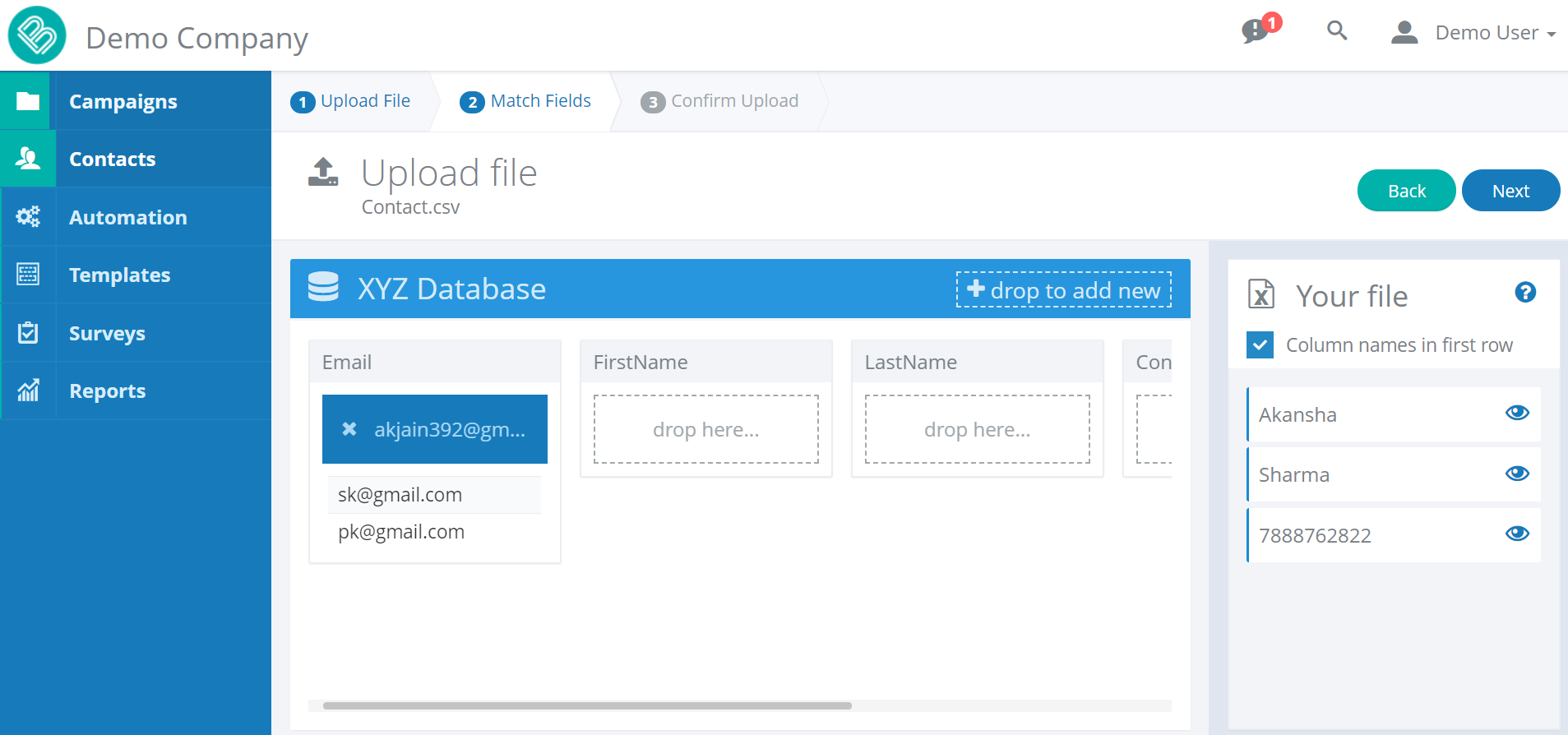
The uploading of the file is the easiest way to add multiple members at a time, the file format needs to be the .CSV file which shall be uploaded using the ‘Upload option‘ , click on the Upload option and choose the file you need to upload. The file format needs to be correct else will not allow to do so, post that you need to drag the column data from the left bar and drop in the right fields, would be only required for 1 member and rest will be placed automatically in place.
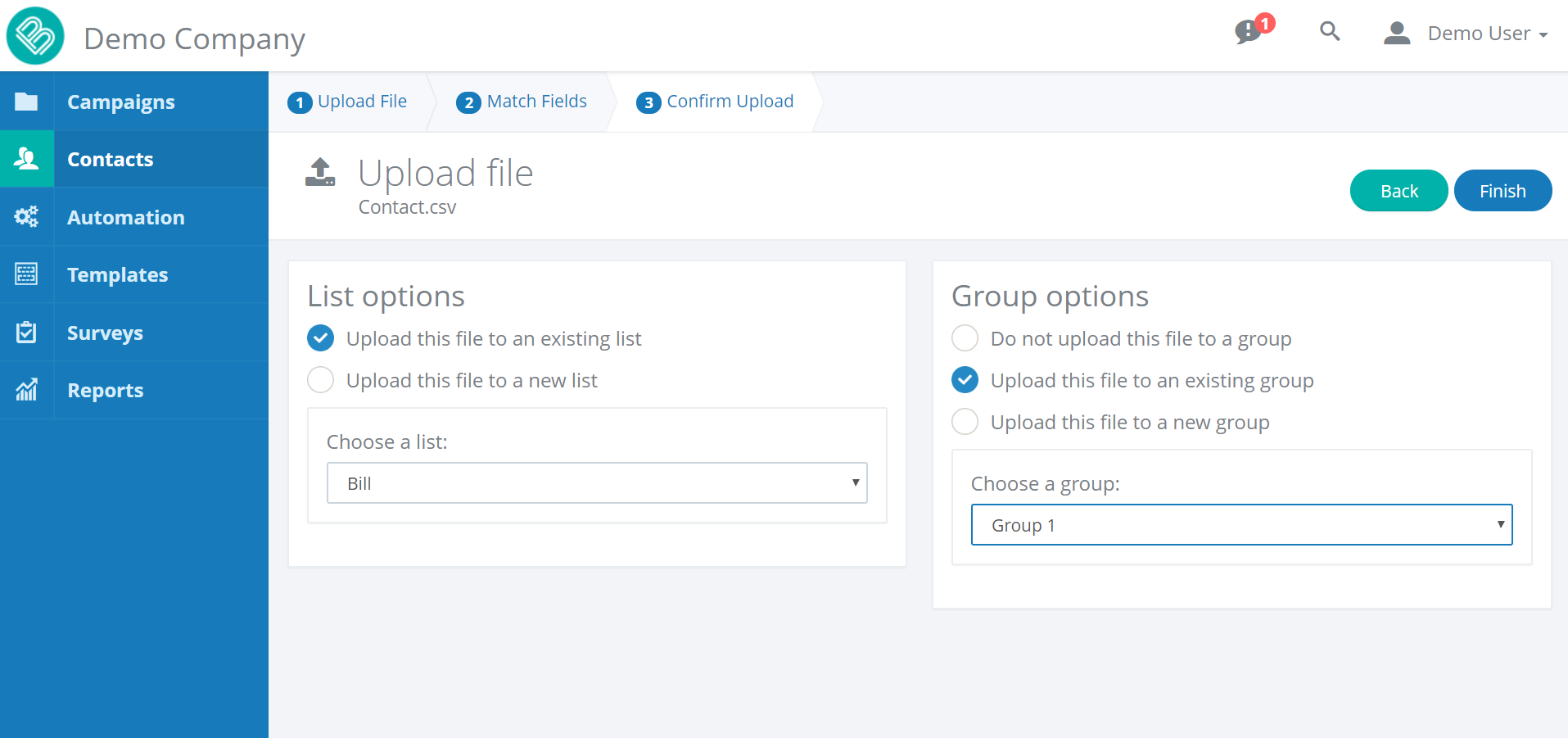
You may use the Existing list for adding the uploaded contacts or can opt for creating a new list by selecting the radio options available, there are group options along with the list choices, one may select the relevant group to add these members in the groups also, else can also opt out from it.
Once you are done with the upload format, you will be able to see each and every member in the main screen.

Download
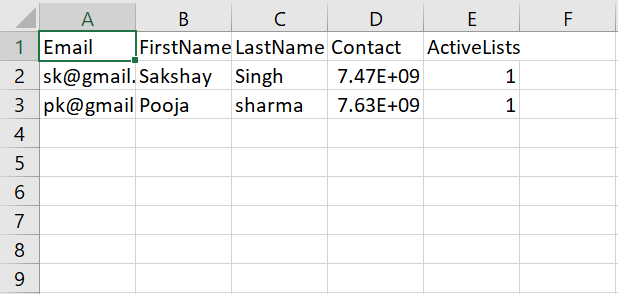
You also have the option to download the ZIP file of the available Persons in your database, and the same once downloaded shows you the Active lists for which the persons re currently enrolled for.
Search
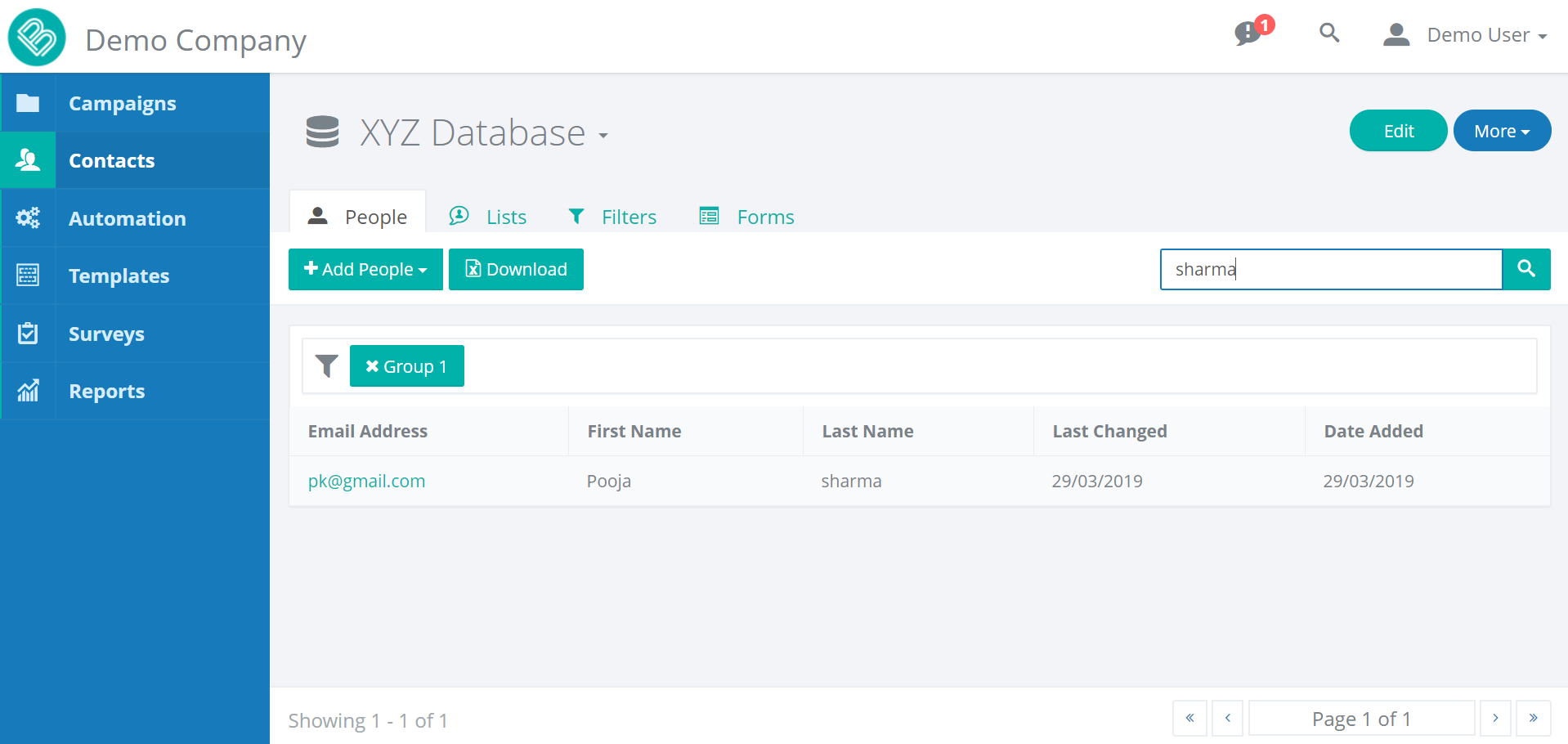
The Search bar in the top right corner on the Peoples tab let’s you to search the people by First Name, Last name, Email-id. The search tab shows you all the valid and possible results based on the entered keyword in the field available to you.
Filters
Filters in the website are really helpful to create a sorted vision in the existing/new database. You are allowed to create your own set of filters that can be applied to any list and any groups. You are allowed to create filters for the available fields in your database for the subscribers, and here the subscribers are the one who are associated to a group or a list.
While using the filters you will find a download option for it and you can use the tab to download the list of the created filters.
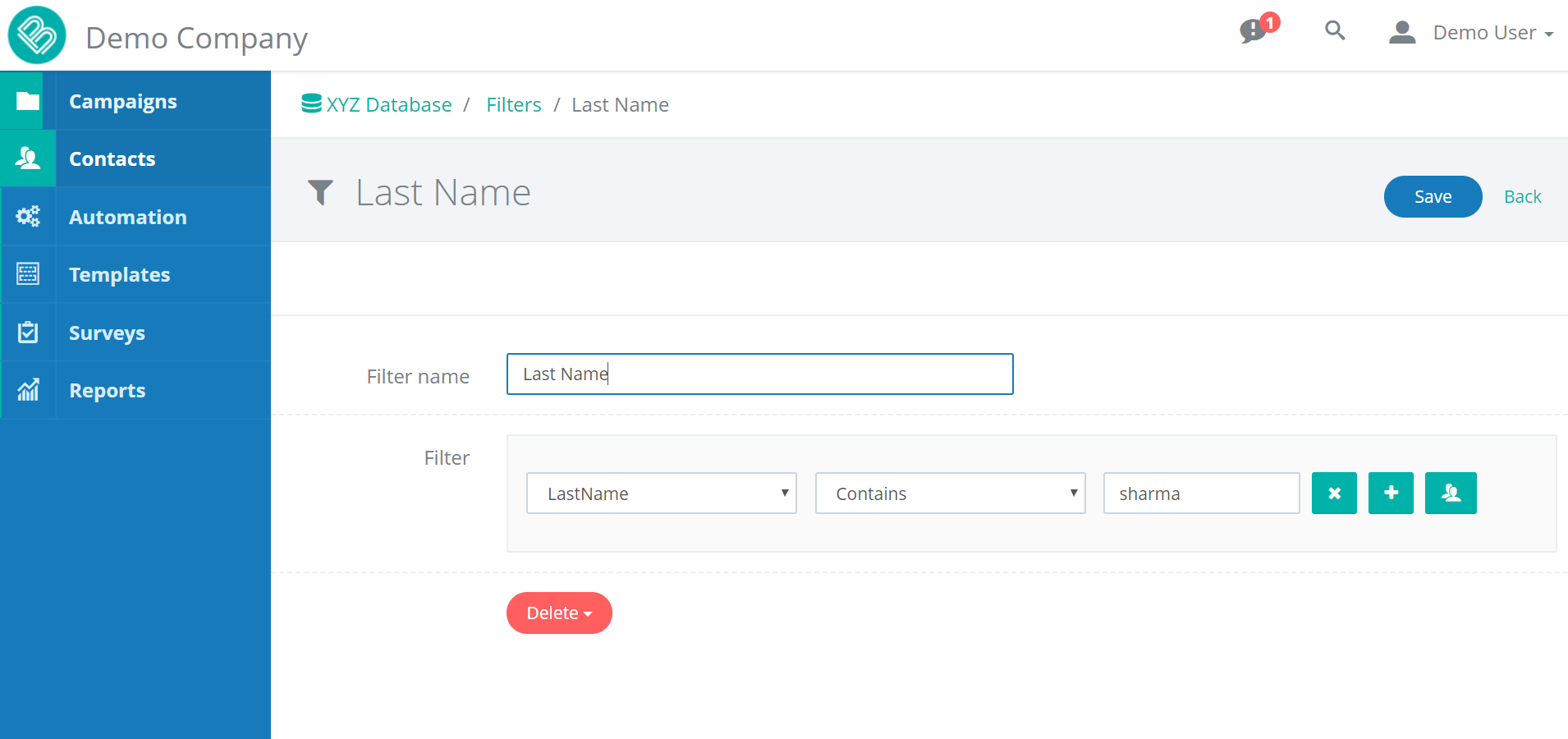
You can have a descriptive understanding of the same by using the given link,
“https://bettermail.zendesk.com/hc/en-us/articles/205768928-How-do-Filters-work- “.
Forms
These are the subscription forms one can use to fill the details and can subscribe for the newsletters they wish to, these will be requiring the generic details of the user and the list one is wishing to subscribe to. You can click on the “Add new form” to add the type of form you want to.
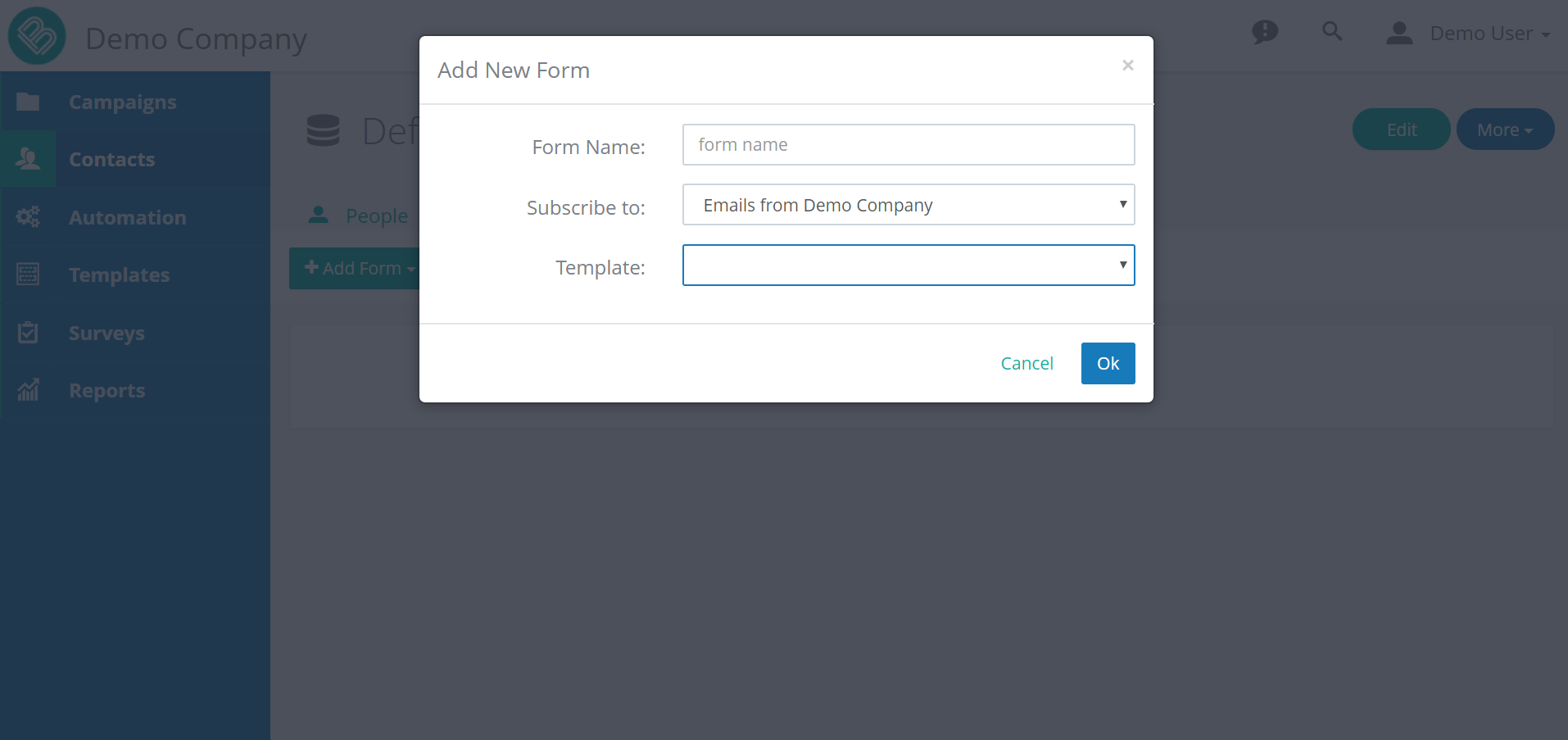
These are the kind of registration that is to be made prior to be part of any newsletter/mails etc.
This was the consolidated overview of the Functionality Better Mail have come up with for you, there would be many related articles to walk you through all the possible functionalities and cheering you up.
Hoping that this can help you out to understand the basic concepts of how this works and flows!!

 Top Feature's of Better Mail